


Introduction
You are facing a challenge familiar to many companies: managing several digital presences from one place — the main website, product pages, event microsites and more. The good news is that with TYPO3 this is not only possible but remarkably efficient.
A TYPO3 multi-domain setup means one installation, unlimited possibilities. You cut hosting costs, reduce maintenance and keep full control over your digital infrastructure.
In this guide, we follow an HTTP request on its journey through the system, from the moment you type a URL to the final content delivery. You will come away understanding not just how the configuration works, but more importantly why.
Table of Contents
Part 1: The Anatomy of a URL – What Your Browser Actually Sends
Before we configure any servers, we need to understand the language of the web. Every web request begins with a URL, so let's look at what actually happens in the address bar.
URL Components in Detail
Let's pull a complex URL apart:
URL Anatomy: What is processed where?
The fragment (#absatz3) never leaves your browser. The browser sends all other components as an HTTP request to the server. The server only sees: GET /folder1/folder2/datei.html HTTP/1.1 with the Host header myserver.at.
The Request Journey at a Glance
Before we dive into the details, here is the overall process at a glance:
The complete request lifecycle
Let's examine each phase in detail.
Part 2: DNS – The Global Address Book of the Internet
DNS (Domain Name System) is the foundation of all web communication. Browsers only understand IP addresses, so DNS translates human-readable domain names into machine-readable IPs.
A-Record vs CNAME Record: The Crucial Choice
Multi-domain setups rely on two DNS record types, and the choice between them has a major impact on performance and functionality:
| Feature | A-Record | CNAME-Record |
|---|---|---|
| Points to | IP address (123.45.67.89) | Another domain name |
| DNS-Lookups | 1x (optimal) | 2x+ (slower) |
| Performance | ★★★★★ Best | ★★★☆☆ Delayed |
| For primary domain | ✓ | ✕ |
| Combinable with MX records | ✓ | ✕ |
| Recommended for multi-domain | ✓ | ✕ |
Critical: a primary domain (e.g. firma-a.de) must not have a CNAME if you need MX records for email. The DNS standards forbid this combination, and your email delivery would fail completely!
DNS Configuration: Practical Implementation
For our multi-domain setup with firma-a.de and projekt-b.com, you need the following DNS records:
Optimal configuration for multi-domain:
; Primary domains
firma-a.de.           IN  A    123.45.67.89
www.firma-a.de.       IN  A    123.45.67.89
projekt-b.com.        IN  A    123.45.67.89
www.projekt-b.com.    IN  A    123.45.67.89

; Email records work in parallel
firma-a.de.           IN  MX   10 mail.firma-a.de.
projekt-b.com.        IN  MX   10 mail.projekt-b.com.
Advantages:
Minimal DNS lookup time (single query)
Compatible with MX/TXT/SPF records
No DNS chain dependencies
Best performance
Set the TTL (Time to Live) to 3600 seconds (1 hour) on production systems. Ahead of a planned change, drop it to 300 seconds (5 minutes) 24 hours in advance so the update propagates faster.
Understanding DNS Propagation
DNS changes are not visible worldwide straight away. Here is what happens:
DNS Record Change
ISP Cache Refresh
Global Propagation
Complete Propagation
Use tools such as DNS Checker, Google Admin Toolbox Dig or the dig command-line tool to check global DNS propagation:
Web-based tools:
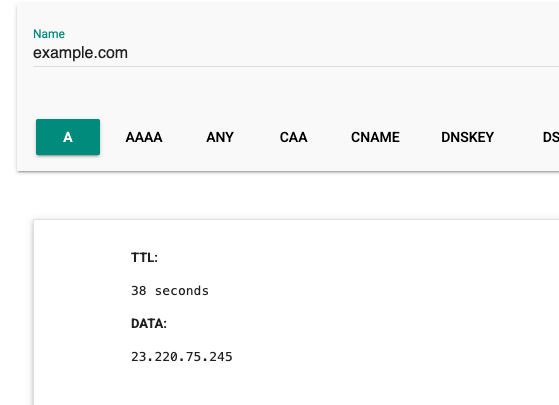
The Google Admin Toolbox Dig runs DNS lookups directly in the browser, which is ideal for a quick check when you have no terminal to hand.
CLI-Tool:
dig firma-a.de +short
# Output: 123.45.67.89
Part 3: Apache Virtual Host – The Intelligent Traffic Director
DNS has handed over the IP address, and now Apache receives the HTTP request. Its job is to route requests for hundreds of potential domains to the right directories.
Virtual Hosts: One Server, Many Websites
Think of Apache as the reception desk of an office building. The IP address is the street address, and the Host header in every HTTP request is like the company name on the envelope. Apache checks its configuration and sends the request to the right 'office' (DocumentRoot).
Apache request routing via Host header
Name-Based Virtual Hosts: The Configuration
Name-based virtual hosts let you run multiple websites on a single IP address, distinguished only by the domain name in the HTTP header.
File: /etc/apache2/sites-available/typo3-multisite.conf
<VirtualHost *:80>
  # DocumentRoot: The central entry point for all domains
  # All requests land here, regardless of the requested domain
  DocumentRoot /var/www/typo3

  # ServerName: The primary domain of this Virtual Host
  # Apache uses this if no other domain matches
  ServerName www.firma-a.de

  # ServerAlias: All other domains that also land here
  # Space-separated list of all additional domains
  ServerAlias firma-a.de www.projekt-b.com projekt-b.com

  # Logging for debugging and monitoring
ErrorLog ${APACHE_LOG_DIR}/typo3_error.logThe three most important directives explained:
ServerName: the primary domain for this virtual host
- Defines the primary domain that Apache ties to this virtual host
- Acts as a fallback when no exact domain match is found
- Example:
ServerName www.firma-a.de - Apache also uses it for redirects and self-referential URLs
- If a request arrives with no Host header or an invalid one, the first virtual host with a matching ServerName takes over
ServerAlias: additional domain names for the same website
- Lets several alternative domains point at the same virtual host
- Perfect for www variants or multiple domain names for one website
- Example:
ServerAlias firma-a.de www.projekt-b.com projekt-b.com - Domains are separated by spaces
- Apache checks ServerName first, then ServerAlias, and the first match wins
- Wildcards are allowed:
ServerAlias *.firma-a.de(for all subdomains)
DocumentRoot: the file-system path to the website files
- The absolute path on the server where the website files live
- Example:
DocumentRoot /var/www/typo3 - Apache serves every matching request from this directory
- It looks for the requested file relative to this path
- For TYPO3, this is where the
index.phpthat handles all requests sits - Important: this must be an existing directory that Apache can read
How it works in practice:
- The browser sends a request to
www.projekt-b.com - Apache receives it and reads the
Host: www.projekt-b.comheader - Apache searches every virtual host for a
ServerNameorServerAliasofwww.projekt-b.com - Match found! → Apache uses the configured
DocumentRoot /var/www/typo3 - All further file access happens relative to
/var/www/typo3
If AllowOverride None is set, Apache ignores TYPO3's .htaccess. Symptom: 404 errors on every page except the homepage. Solution: set AllowOverride All.
Multi-Domain with Separate DocumentRoots
Sometimes you want a separate TYPO3 installation per domain. Here is the more advanced configuration:
# Virtual Host 1: Company A
<VirtualHost *:443>
  DocumentRoot /var/www/firma-a
  ServerName www.firma-a.de
  ServerAlias firma-a.de

  <Directory /var/www/firma-a>
      Options FollowSymLinks
      AllowOverride All
      Require all granted
  </Directory>
</VirtualHost>

# Virtual Host 2: Project B
<VirtualHost *:443>- Single installation: Shared hosting, shared extensions, central maintenance
- Separate installations: Completely isolated projects, different TYPO3 versions, separate teams
Part 4: TYPO3 Site Management – The Content Engine
Apache has forwarded the request, and now TYPO3 takes over. The CMS has one decision to make: which website should it serve for this domain?
The Foundation: The TYPO3 Page Tree
TYPO3 keeps all content in a hierarchical page tree. Every independent website needs its own root page.
TYPO3 Multi-Site Page Tree Structure
Site Management Module: Modern Configuration
Since TYPO3 v9, the Site Management module has replaced the old, complex TypoScript configuration. It defines entry points: the link between a domain and a root page.
Create Root Pages
Open Site Management
Create Site Configuration
Define Entry Point
Configure Languages
Repeat for Additional Sites
The config.yaml in Detail
TYPO3 stores every site configuration as a YAML file. Here is the structure for our Company A site:
# config/sites/firma_a/config.yaml (Composer installation)
# Legacy path: typo3conf/sites/firma_a/config.yaml
rootPageId: 1
base: 'https://www.firma-a.de/'

# Language configuration
languages:
-
  title: Deutsch
  enabled: true
  languageId: 0
  base: /
  typo3Language: de
  locale: de_DE.UTF-8
navigationTitle: DeutschKey Concepts:
• rootPageId: The Page UID of the root page
• base: the entry point — TYPO3 matches incoming HTTP requests against this value
• languages: Multi-language support
• errorHandling: Custom error pages
• routes: Static routes (robots.txt, sitemap.xml)
The config.yaml files should be version-controlled (Git). This allows you to:
- Track changes
- Perform rollbacks
- Synchronise configs across environments (Dev → Staging → Prod)
- Conduct code reviews for infrastructure changes
TYPO3 Request Matching: The Algorithm
Here is how TYPO3 decides which site is responsible for a given request:
TYPO3 Site Resolution Flow
Important: TYPO3 checks both base and baseVariants, and the first matching configuration wins. If more than one matches, the alphabetically first config.yaml takes precedence.
Part 5: The Complete Request Journey – End-to-End
Let's trace a complete request for www.projekt-b.com through every layer:
End-to-End Request Journey for www.projekt-b.com
Request Details: The HTTP Headers
What does the browser actually send? Let's look at the real HTTP headers:
HTTP request from the browser:
GET / HTTP/1.1
Host: www.projekt-b.com
User-Agent: Mozilla/5.0 (Macintosh; Intel Mac OS X 10_15_7) AppleWebKit/537.36
Accept: text/html,application/xhtml+xml,application/xml;q=0.9,*/*;q=0.8
Accept-Language: de-DE,de;q=0.9,en;q=0.8
Accept-Encoding: gzip, deflate, br
Connection: keep-alive
Upgrade-Insecure-Requests: 1
Important for routing:
• Host: www.projekt-b.com — Apache and TYPO3 use this header for domain matching
• Accept-Language: the browser's language preference (TYPO3 can respond to it)
• Accept-Encoding: lets the server compress the response (gzip)
Troubleshooting: Common Errors
The base value in the TYPO3 config.yaml must end with /:
base: 'https://www.firma-a.de/'
base: 'https://www.firma-a.de'
Without the trailing slash, domain matching simply will not work!
Conclusion: Your Digital Infrastructure – Scalable and Future-Proof
You have now seen the full architecture of a TYPO3 multi-domain setup. From the DNS layer and Apache virtual host through to the TYPO3 site configuration, you understand how the individual pieces fit together.
What You Have Achieved
Performance
Optimal DNS configuration using A-records for minimal latency. No CNAME chains, just direct IP routing, so your sites load quickly worldwide.
Cost Efficiency
A single TYPO3 installation for any number of domains. Lower hosting costs, shared extension management and central maintenance and updates.
Maintainability
Central management of every website. One update, one backup, one monitoring setup. Your DevOps team will thank you.
Security
SSL/TLS configuration for every domain, with HSTS, security headers and modern TLS ciphers. Your visitors stay protected.
Scalability
Unlimited expansion: add new domains in minutes, with no more drawn-out migration projects. Your infrastructure grows with your business.
Flexibility
Per-site configuration: its own languages, templates and extensions, all controlled from one central installation.
The Three Layers at a Glance
The three architectural layers interacting
Your Next Steps
Configure DNS
Set up Apache Virtual Host
Configure TYPO3 Sites
Monitoring & Optimisation
Best Practices for Production Operation
DNS:
- A-records for all domains and www subdomains
- TTL to 3600 seconds (1 hour)
- CAA records for SSL providers (Let's Encrypt)
- SPF/DKIM/DMARC for email domains
Apache:
- SSL/TLS with automatic renewal (certbot)
- HTTP/2 enabled (
a2enmod http2) - Gzip/Brotli compression (
a2enmod deflate) - Security headers (HSTS, X-Frame-Options, CSP)
- Log rotation configured
TYPO3:
- Site configs version-controlled (Git)
- Separate config.yaml per site
- baseVariants for staging/dev
- Error handling with custom pages
- robots.txt & sitemap.xml per site
- Multi-language configured
Monitoring:
- Uptime checks for all domains (e.g., UptimeRobot)
- SSL certificate expiry alerts
- DNS monitoring (e.g., DNSPerf)
- Apache logs aggregated (e.g., ELK Stack)
- Centralised TYPO3 error logging
Support & Further Resources
Official Documentation:
Tools:
- DNS Checker — check global DNS propagation
- SSL Labs — test your SSL configuration
- GTmetrix — performance analysis